To register as a customer, first click on the "Login" link located at the top right corner of the website. If you already have an account, simply log in with your credentials. If you don't have an account, click on the "Sign Up Now" link. This will take you to the registration page where you can choose to register as a customer. Fill in the required details such as your name, email, and password, then click "Submit." An activation link will be sent to your email. Open your inbox, click on the activation link to activate your account, and then return to the website to log in with your newly created credentials.
To register as a Customer, click on the "Sign Up Now" link below. This will take you to the Customer registration page where you can fill in the necessary details.
Sign Up as Customer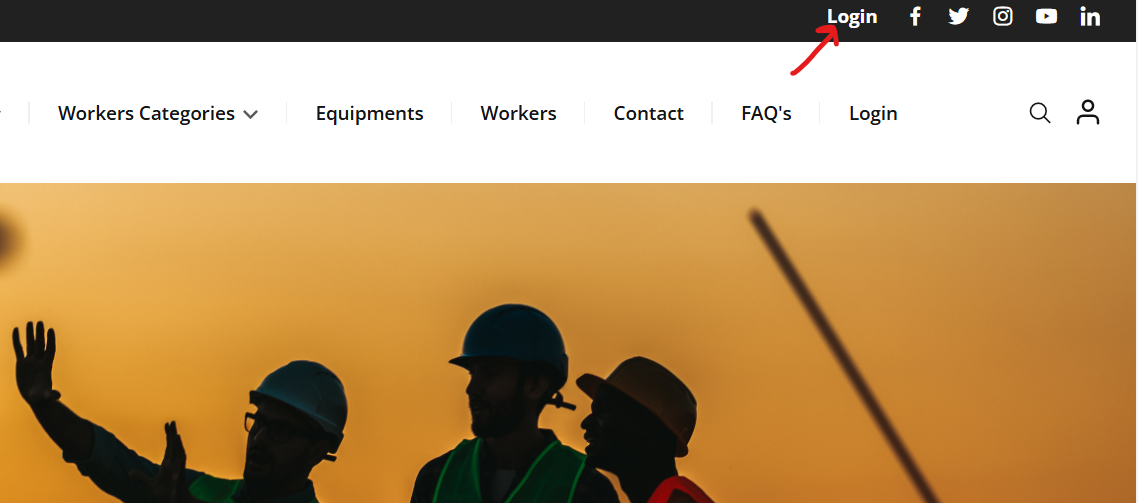

To register as a Supplier, first click on the "Login" link located at the top right corner of the website. If you already have an account, simply log in with your credentials. If you don't have an account, click on the "Sign Up Now" link. This will take you to the registration page where you can choose to register as a supplier. Fill in the required details such as your name, email, and password, then click "Submit." An activation link will be sent to your email. Open your inbox, click on the activation link to activate your account, and then return to the website to log in with your newly created credentials.
To register as a Supplier, click on the "Sign Up Now" link below. This will take you to the Supplier registration page where you can fill in the necessary details.
Sign Up as Supplier
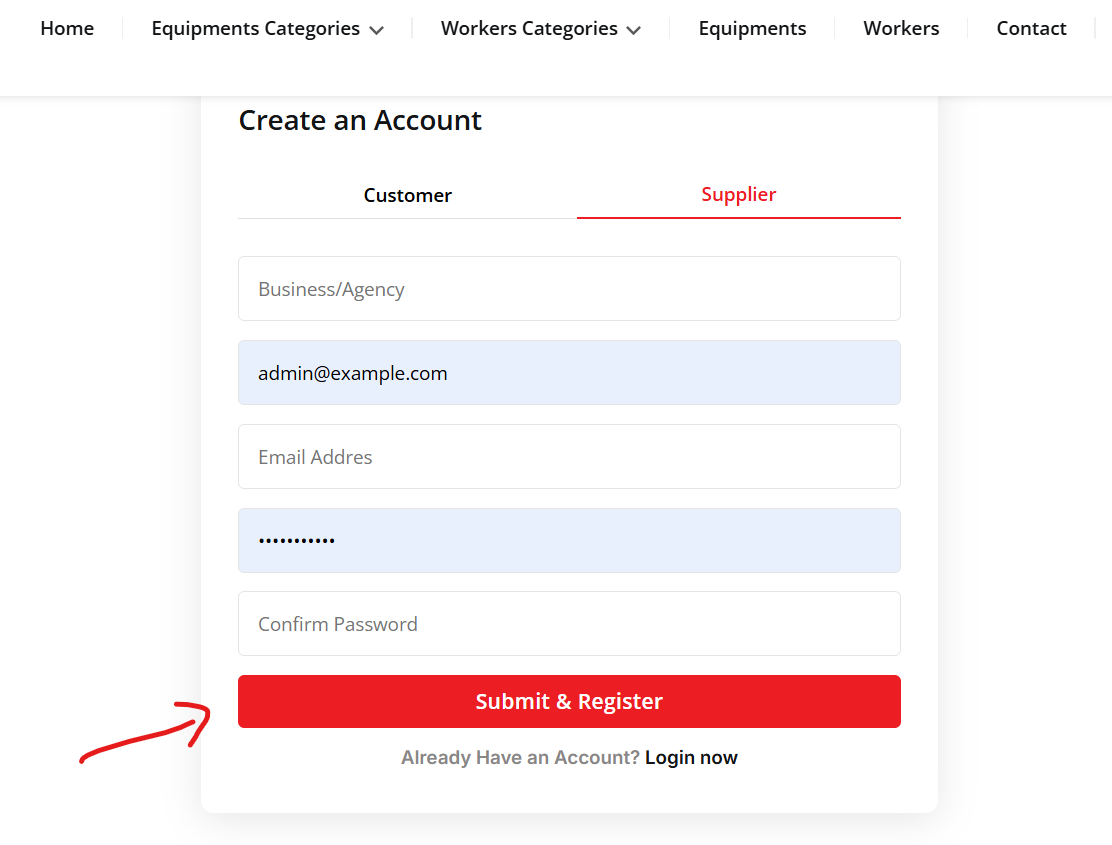
When you sign up as either a Customer or Supplier, you need to verify your email before you can fully access your account. Here's how the process works:
After you register as a customer, you will receive an activation link sent to your email inbox. Click on this link to verify your email and activate your account. Once your email is verified, you can log in and start using your account.
Similarly, after registering as a Supplier, you will also receive an activation email. You must click on the activation link in your email to verify your account. Once verified, you can log in to your supplier account.
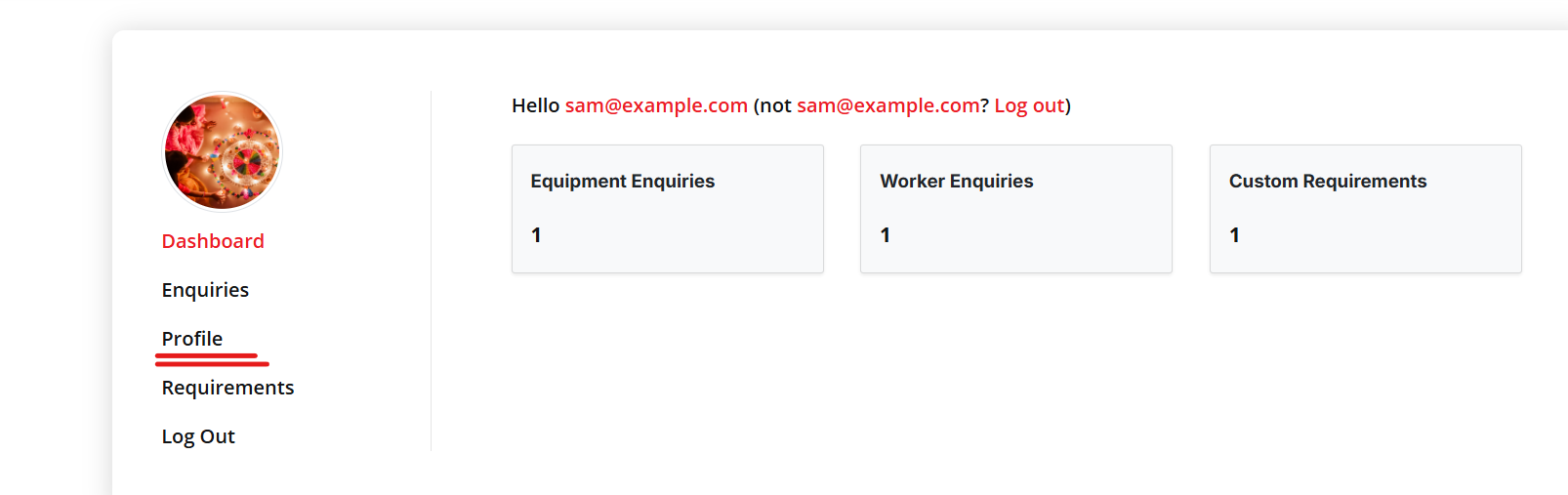
Whether you are a Customer or a Supplier, updating your profile details is essential to keep your information accurate and up-to-date. Here’s how you can do it:
First, log in to your account as a customer. After logging in, you will be directed to your Customer Dashboard, where you will find an option to update your Profile Settings. The Profile Settings link or button is typically located in the sidebar or at the top of the page in the menu.
Once in the Profile Settings section, you can update your details such as name, email, password, and any other personal information. After making the necessary changes, be sure to click the Save or Submit button to save your updates.
To update your profile as a supplier, log in to your account using your supplier credentials. Once logged in, navigate to the top-right corner of the page where you will see a dropdown menu, usually with your profile picture or username. Click on this dropdown and select the Profile option. This will take you to your supplier profile page.
On your profile page, you can update your personal details, including name, email, company information, and other relevant information. Don’t forget to click the Save button after making any changes to ensure your updates are applied.
If you have any questions or need further assistance, feel free to reach out to our support team!

Updating the details of your supplied equipment or workers is simple and straightforward once you log in as a supplier. Here’s how you can do it:
After successfully logging into your supplier account, navigate to the Sidebar Menu. In the sidebar, you will find options such as Equipment and Workers. Click on the appropriate option based on what you want to manage.
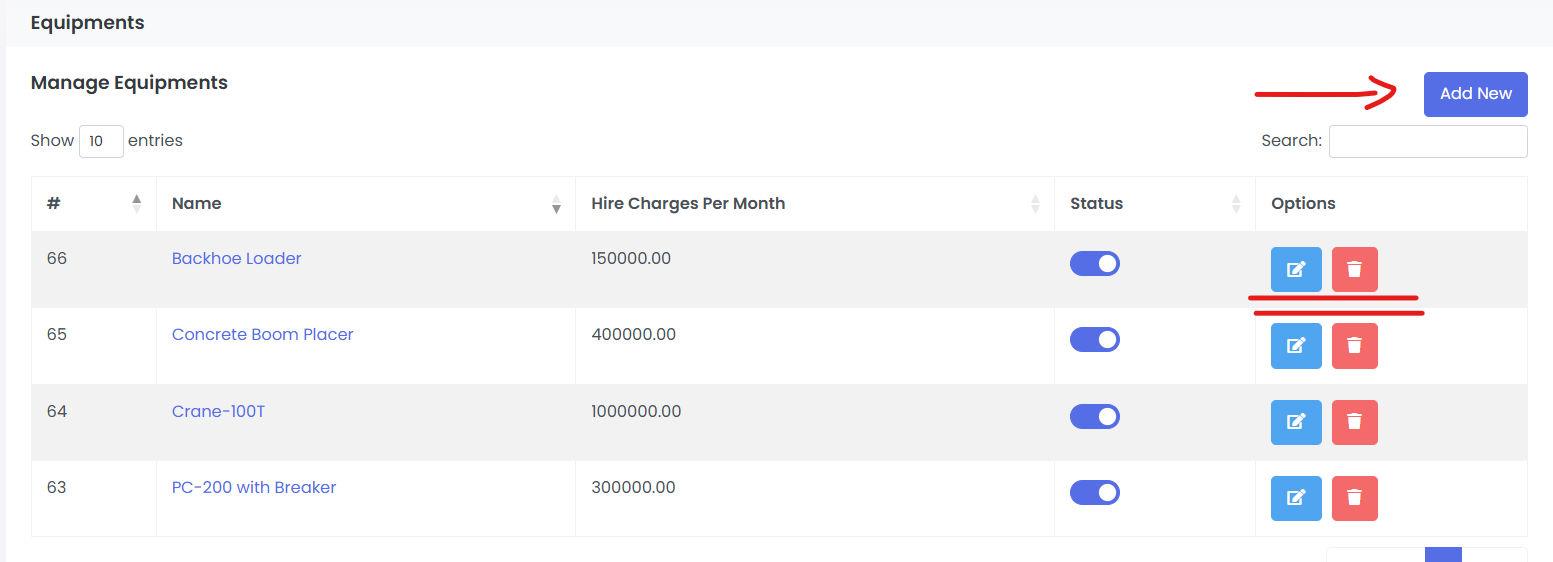
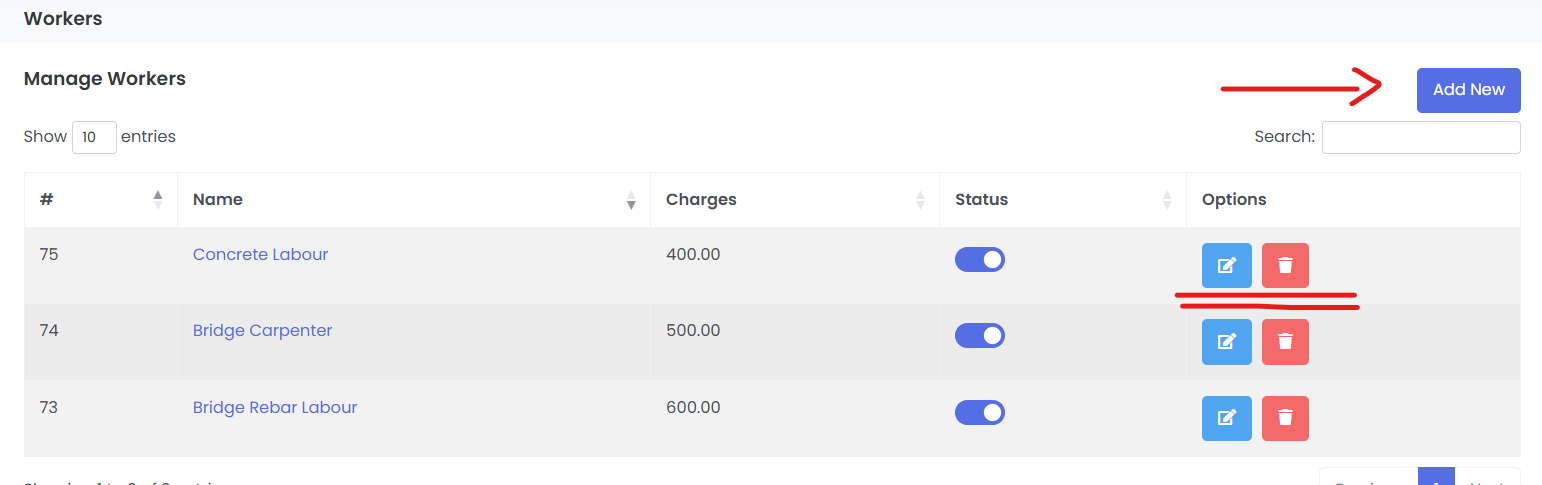
To add new equipment or workers, click on the Add Equipment or Add Worker button available in their respective sections. This will open a form where you can enter the necessary details, such as the name, specifications, availability, or any other relevant information. After filling in the details, click on Save to add the new entry.
To update the details of existing equipment or workers, locate the item you want to edit in the list. There will be an Edit button or icon next to each entry. Click on this button to open the edit form. Make the necessary updates and click Save to apply the changes.
By following these steps, you can ensure that your equipment and worker details are always accurate and up to date. Keeping this information current is important to manage your resources effectively and provide accurate details to potential customers.
If you encounter any issues or need further assistance, our support team is always here to help!
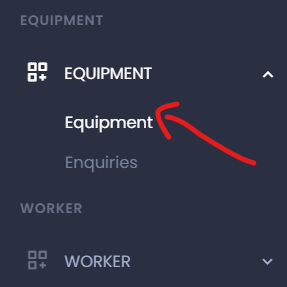
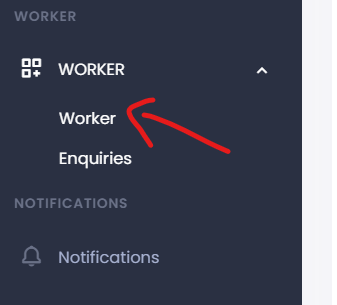
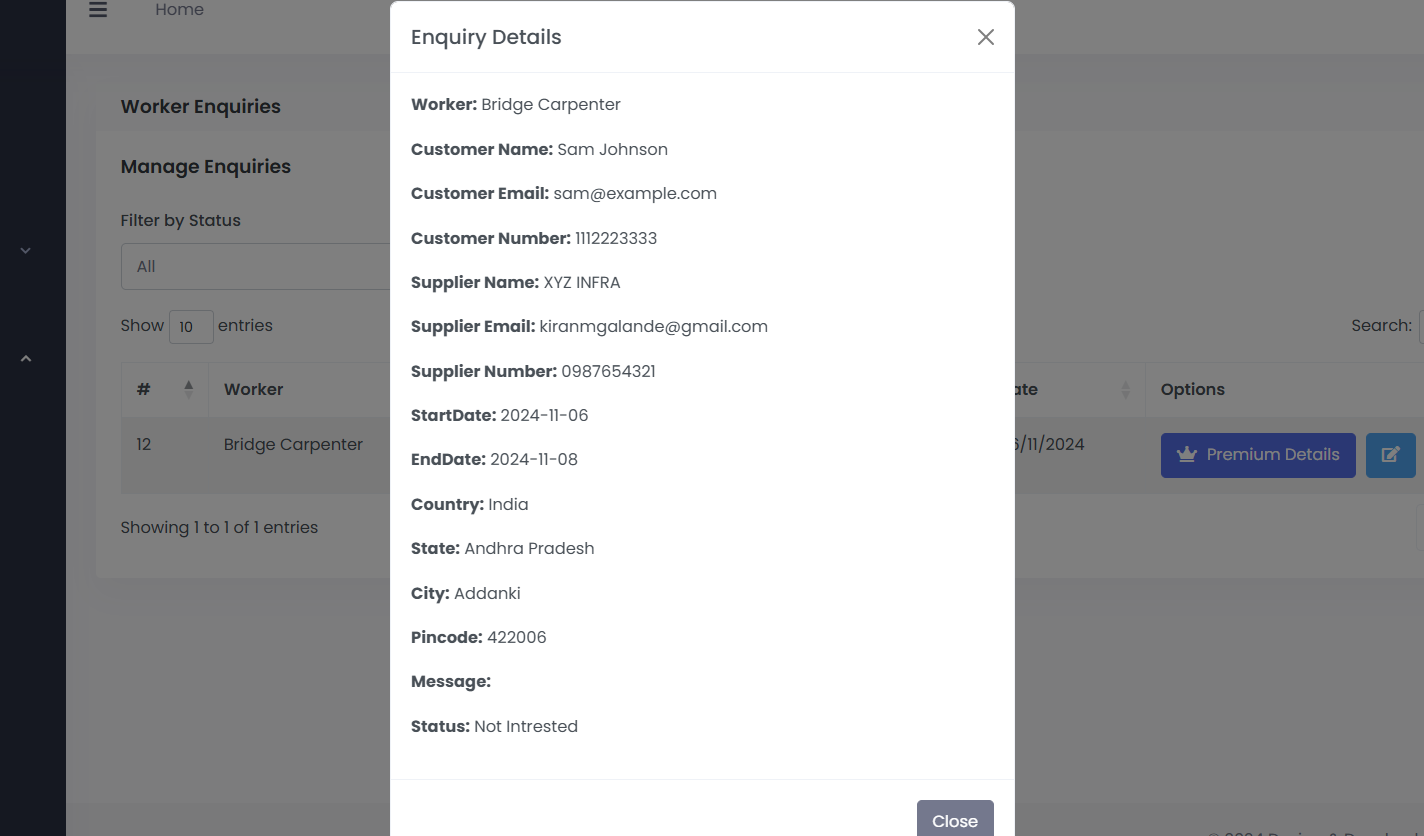
After you log in as a supplier, you can check the enquiries related to your equipment or workers directly from the sidebar menu. Under the "Equipment" section, click on "Enquiries" to view all the enquiries related to your listed equipment. Similarly, for worker-related enquiries, go to the "Worker" section and select "Enquiries."
Once you access the enquiries, you'll be able to see detailed information about each enquiry, including the customer's contact information and their specific requirements. You can use this information to reach out to the customer directly via email or phone to discuss their needs and finalize the arrangements.

After you log in as a customer, you will find the "Requirements" option in the dashboard menu. Click on it to access the page where you can manage your requirements.
At the top of the "Requirements" page, you will see a form to add new requirements for equipment or workers. Fill in the required details and submit the form to add a new requirement.
Below the form, you will find a table displaying all the requirements you have submitted. From this table, you can view the details of each requirement, edit them if there are any changes needed, or delete them if the requirement is no longer valid.
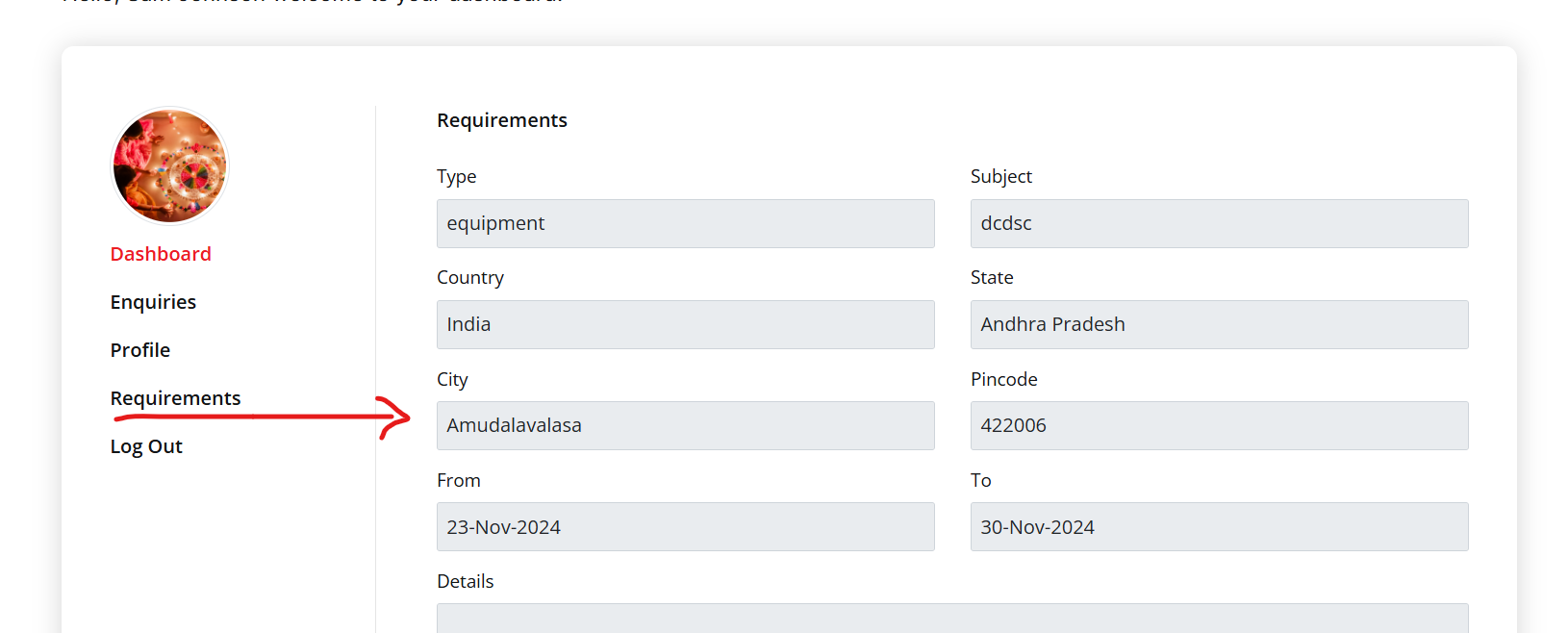
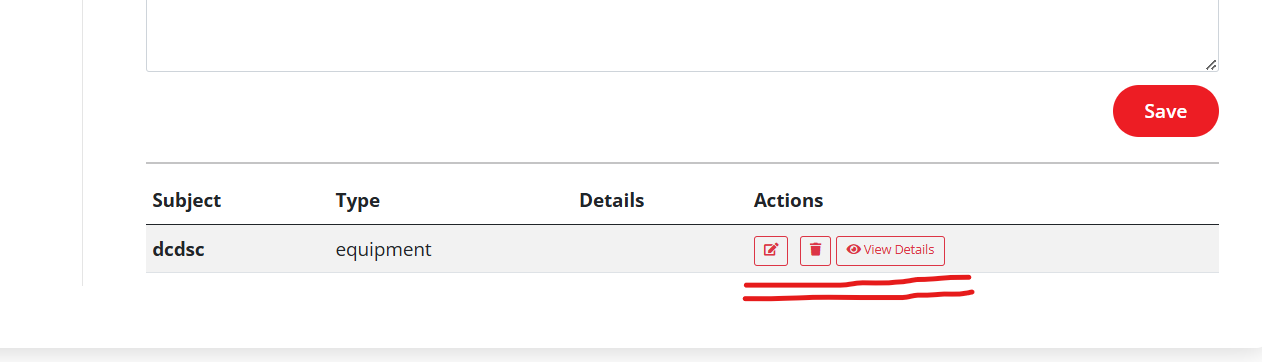
After you log in as a customer, you will find the "Requirements" option in the dashboard menu. Click on it to access the page where you can manage your requirements.
At the top of the "Requirements" page, you will see a form to add new requirements for equipment or workers. Fill in the required details and submit the form to add a new requirement.
Below the form, you will find a table displaying all the requirements you have submitted. From this table, you can view the details of each requirement, edit them if there are any changes needed, or delete them if the requirement is no longer valid.
After you log in as a customer, navigate to the "Enquiries" section in your dashboard. This section allows you to manage and view all the enquiries you have sent to suppliers for equipment or workers.
In the "Enquiries" section, you will find tabs at the top that help you filter your enquiries by "Equipment" or "Worker." Simply click on the respective tab to view enquiries specific to equipment or workers. This feature ensures easy navigation and organization of your enquiries.
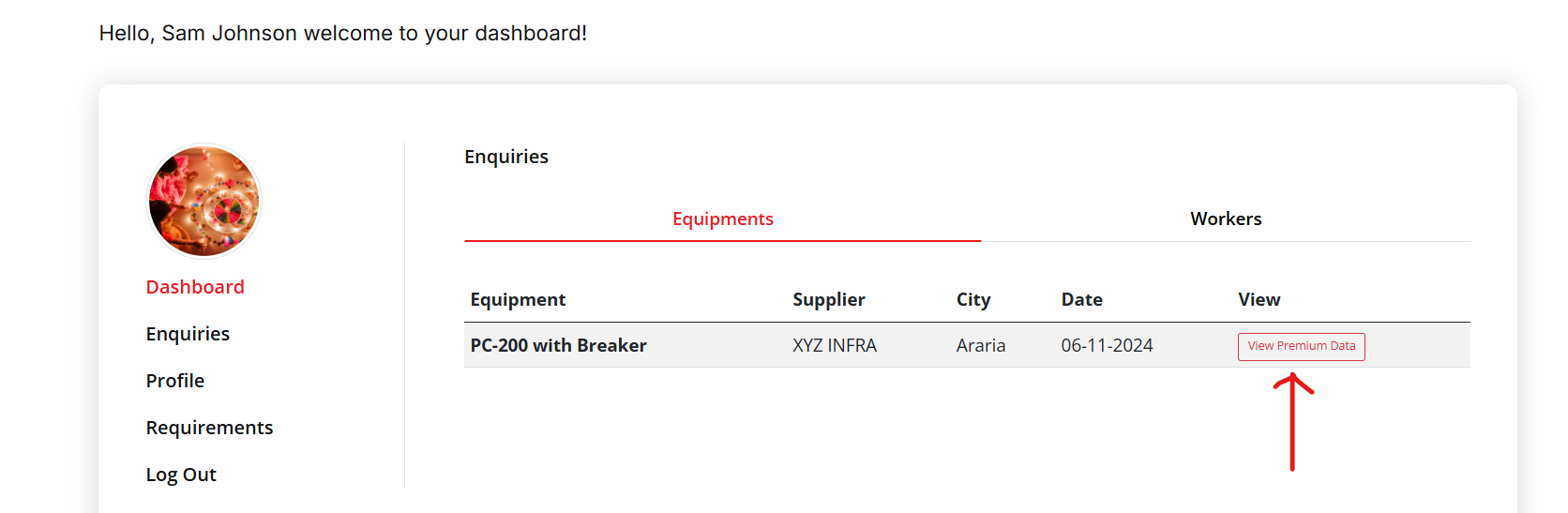
For each enquiry, there is an option to access "View Premium Data," where you can find detailed information about the supplier, including contact details, for the selected equipment or worker. This enables you to reach out directly to the supplier for further discussions and transactions.